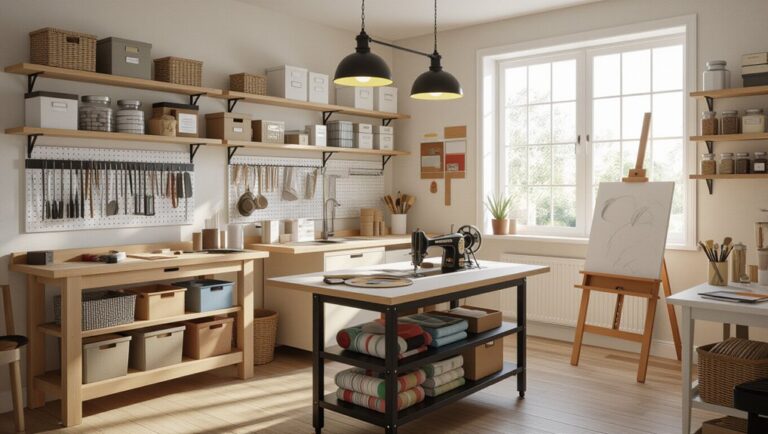
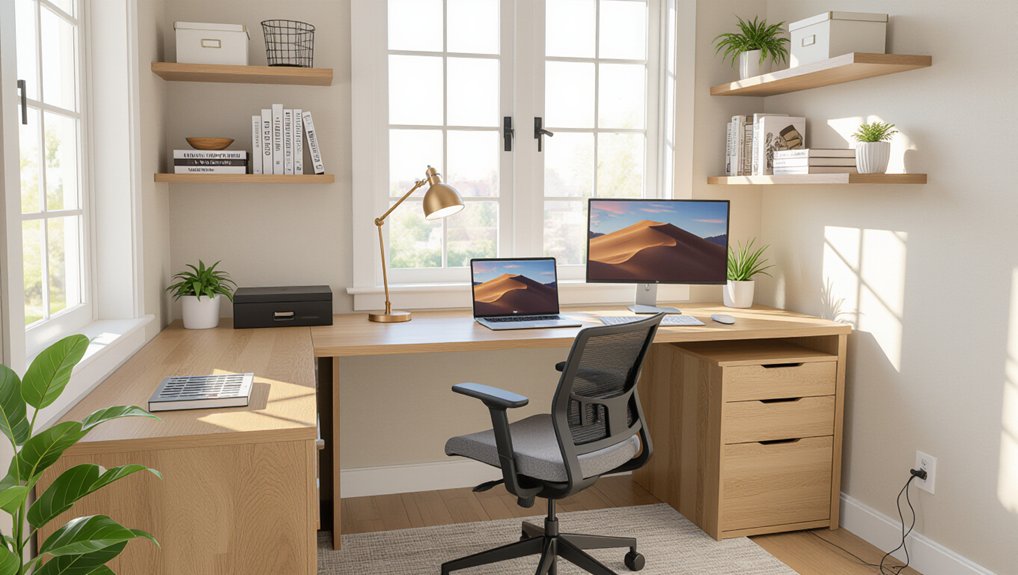
You’ll build a productive home office faster when you map your daily tasks and zone the room for focus, calls, and reference work. Place your desk so daylight hits from the side, your screen sits perpendicular to windows, and outlets are nearby for clean power routing. Keep your primary tools within reach, hide rarely used items in drawers, and tame cables with clips and labels. Set your chair and monitor to neutral posture, and there’s more ahead to refine it.
Key Takeaways
- Zone your office by task, keeping your primary work tools within arm’s reach and secondary supplies nearby but separate.
- Place the desk perpendicular to windows, facing the room, to reduce glare and avoid distractions from foot traffic.
- Use layered lighting: soft ambient light plus a task lamp on your non-dominant side to prevent shadows and eye strain.
- Control clutter with closed storage, a clear landing zone, and disciplined cable routing using clips, labels, and mounted power strips.
- Set ergonomic heights: feet flat, lumbar support engaged, monitor at eye level and arm’s length, and keyboard close with neutral wrists.
Plan Your Home Office Layout Around Your Tasks
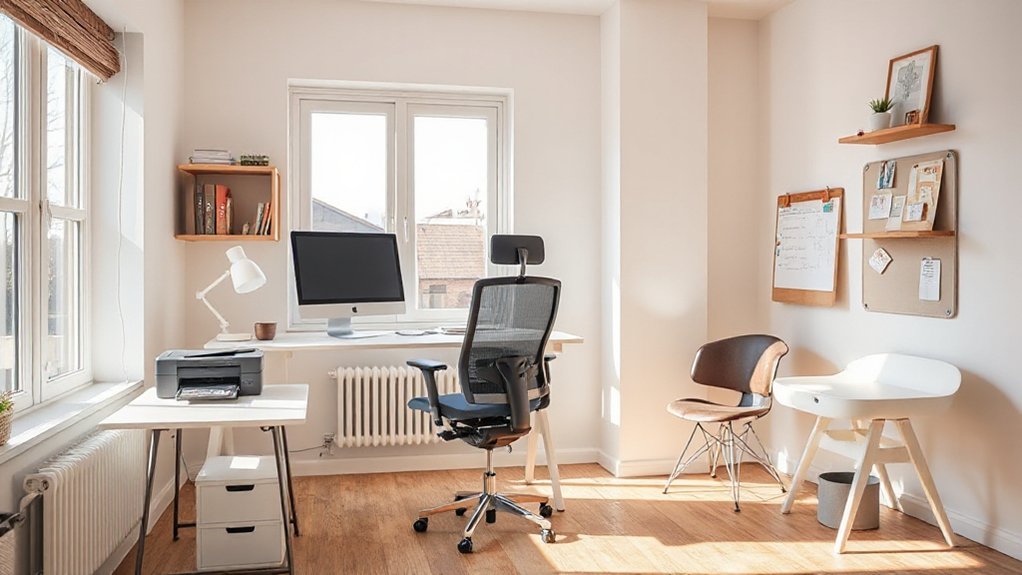
If you start by mapping your daily tasks, you can design a home office layout that supports how you actually work. List what you do most—deep focus, calls, sketching, filing, shipping, or content creation—then assign each to clear workspace zones. Keep your primary zone tight: chair, monitor, keyboard, and frequently used tools within easy reach to reduce twisting and overreaching. Create a secondary zone for reference materials and a quick-access zone for chargers, pens, and notes. Store rarely used items up high or in closed drawers to protect floor space and visual calm. Use consistent decor aesthetics—matching bins, a restrained palette, and one focal piece—so the layout feels intentional, not cluttered.
Pick the Best Desk Spot (Light, Noise, Outlets)
Where you place your desk sets the tone for everything that follows, so prioritize light, noise control, and outlet access before you commit to any furniture. Aim for Natural light from the side to keep the room feeling open, and leave enough clearance to slide your chair back without bumping walls or shelves.
Next, map the noise: avoid doors, kitchens, and shared walls when you can, and use Soundproofing strategies like a thick rug, bookcase buffering, and a door sweep to cut chatter. Place your desk where you can face the room, not a high-traffic path, so you don’t twist to check movement. Finally, choose a spot within easy reach of outlets, or plan a mounted power strip and cable raceway to keep cords off the floor and your feet free.
Set Lighting and Screens to Prevent Glare
Because glare quietly drains your focus and strains your eyes, set your lighting and screens before you fine-tune anything else. Start with ambient lighting that’s even and soft, not a bright bulb pointed at your face. Place a task lamp to the side of your non-dominant hand and aim it at the work surface, not the monitor. For screen positioning, keep your display perpendicular to windows so daylight hits from the side, not the front or back. Tilt the screen slightly downward and set the top edge at or just below eye level to reduce squinting. If reflections persist, lower brightness, increase text size, and use a matte screen filter. You’ll work longer with less fatigue overall.
Keep Your Home Office Layout Clear (Storage + Cables)
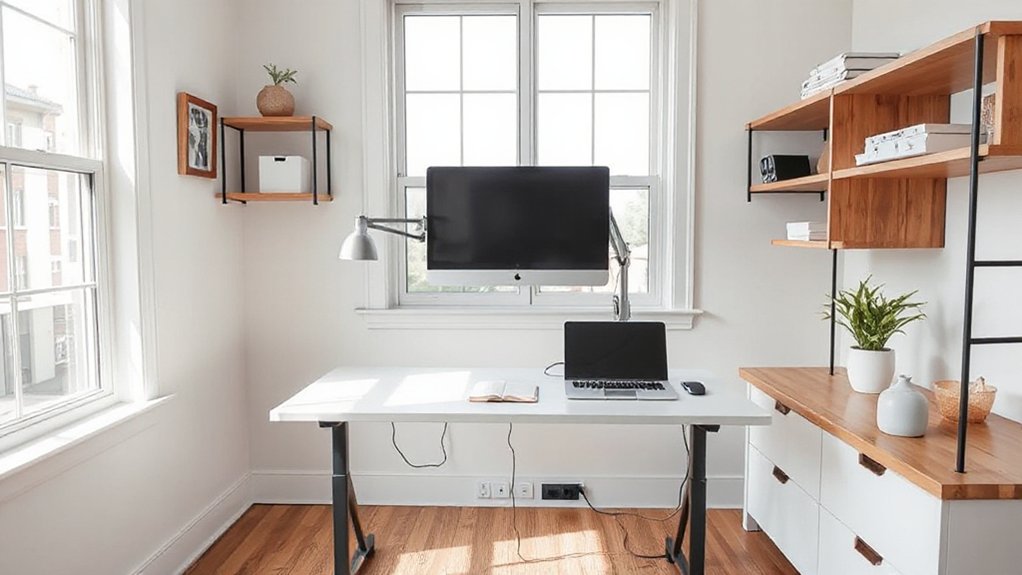
Once your lighting and screens sit glare-free, clear the physical clutter that still steals attention: loose cables and scattered supplies. Start with Cable management: route power and data lines along desk edges, secure them with clips or an under-desk tray, and label each plug so swaps don’t become scavenger hunts. Keep a single charging station near the outlet, not across your workspace, and coil slack with Velcro ties.
Next, control paper and tools with Decorative storage that earns its footprint. Use a vertical file, a lidded box for small tech, and a shallow drawer insert for pens and adapters. Store backups behind you, keep daily items within easy reach, and leave one clear landing zone for active projects.
Dial In Ergonomics for All-Day Comfort
After you’ve cleared the clutter, set your workstation up so your body stays neutral all day: adjust your chair so your feet rest flat and your knees sit near 90 degrees, keep your hips slightly higher than your knees, and let the backrest support your lower spine.
Next, position your monitor an arm’s length away, with the top edge at eye level so you don’t crane your neck. Keep your keyboard close, elbows tucked, and wrists straight; add ergonomic accessories like a slim wrist rest and a compact mouse to save space. Use adjustable furniture—a sit-stand desk or a keyboard tray—to fine-tune height without rearranging the room. Place frequently used items within your forearm reach, and schedule quick micro-breaks to reset posture before fatigue builds.
Frequently Asked Questions
How Can I Make My Home Office Look Professional on Video Calls?
Use professional lighting facing you, keep the camera at eye level, and choose tidy background decor. You’ll frame a clean wall, hide clutter in storage, and position your chair and desk for comfort.
What Budget Upgrades Improve Productivity Without Remodeling the Room?
You’ll boost productivity on a budget by adding ergonomic furniture like a chair cushion or monitor riser, plus ambient lighting with a dimmable lamp. Use cable clips, a desk mat, and vertical organizers.
How Do I Keep My Home Office Secure From Household Data and Privacy Risks?
Oddly enough, you’ll secure your home office by starting with Encryption protocols on Wi‑Fi and devices, then tightening Access controls: strong passwords, MFA, separate guest network, auto-lock screens, shred papers, and store drives in a locked drawer.
What Are the Best Ways to Reduce Distractions When Working From Home?
Reduce distractions by setting a clear schedule, silencing notifications, and using noise reduction with headphones. You’ll improve distraction management by tidying daily, blocking sightlines to clutter, and keeping only essential tools within reach.
How Can I Share a Home Office Space Effectively With Another Person?
Set schedules, set boundaries, share supplies. You’ll make a shared space work by zoning desks, syncing noise rules, and using layout optimization: vertical storage, cable control, and adjustable chairs so you both stay comfortable, focused, and productive.
Conclusion
When you shape your home office around what you actually do, your day flows like a well-cut riverbed. Place your desk where light lifts you, noise stays low, and outlets sit within reach. Angle screens to dodge glare, then tame cables and storage so clutter can’t creep back in. Tune chair, desk, and monitor height until your body settles. With these smart layout choices, you’ll work lighter, faster, longer.
About the Author